
Your first ten minutes
Set up your niches, read your dashboard and learn where everything is.
IndieTower watches the App Store and Google Play and shows you what is new: every launch, who is testing quietly, what is taking off, and how your own market is moving. Here is the quickest way to make it useful for you.
Tell us your niches
A niche is a word or two that describes what you build or study: “habit tracker”, “merge puzzle”, “ai photo”. On your dashboard, choose Edit niches and add them. Everything on the dashboard follows these words.
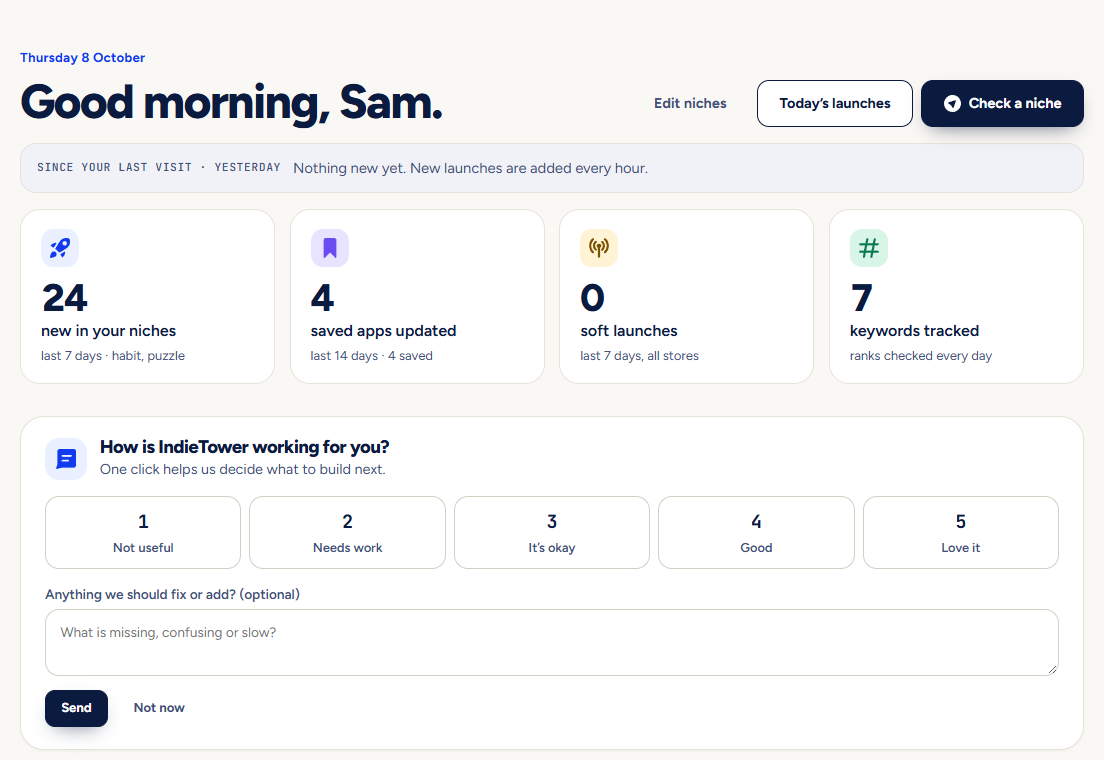
Read the four numbers
The cards at the top show what changed: new apps in your niches, saved apps that shipped an update, soft launches this week and the keywords you track. Each card opens the list behind it.
Check one idea
Open Niche Explorer, type an idea and press Check niche. You get a verdict, the apps you would compete with and what launched lately. How to read it.
Save the apps you care about
Open any app and press Save. Saved apps are re-checked every day, so you see new versions and store page changes. Mark your own app with This is my app on the Tracking page.
Turn on the morning email
In Settings → Emails, switch on the Daily digest and pick the hour. It only arrives on days when something is new.
Where things are
- Discover: Launches, Soft launches, Breakouts, Top charts and Publishers show what is happening in the stores.
- Research: Niche Explorer, Ask IndieTower, Gaps, Keywords, Reviews and Compare help you decide what to build and how to position it.
- My apps: Tracking and Listing check follow your own app and your competitors.
Pictures show a demo account. The names and numbers in them are examples, not live data.
Next guideCheck an app idea with Niche ExplorerSee how crowded a niche is, who you would compete with and what launched lately.